
Trace the connection from your desk to the street
The lights go out midway through a call. The laptop stays on and the Wi-Fi symbol still shows a connection, yet the other person disappears. The computer and the access point have power. Somewhere between the access point and the remote service, another necessary link has stopped working. The useful question is where the failure occurred and who can do something about it.
Trace the incoming cable to the first powered box. With fiber, this is often an optical network terminal, or ONT. With cable broadband, look for the modem or the combined modem and router. Follow the Ethernet lead from that box to the router and then to the particular switch, mesh node or access point you use. A Wi-Fi mesh satellite upstairs can go dark while the gateway downstairs remains online. One wired laptop or one room with coverage may be enough to finish the work you care about.
Draw the path on paper and put a mark next to each power supply. Look in a utility cupboard, basement or garage as well as at the desk. A fiber terminal and its power adapter can sit in different places. If equipment lives in a shared building cabinet or is hardwired, ask the provider or building manager about its backup arrangements. Leave their equipment as installed.
Fiber is a useful example of where a local plan ends. The Fiber Optic Association distinguishes the powered terminal in the home from the powered equipment at the provider end. A passive splitter between them can operate without its own supply. Your battery cannot restore either a failed provider site or a broken cable. A local power test on a normal day establishes what happened inside your home while the outside network was available.
Ask which service the provider battery actually supports
Start with the exact backup unit or plan name. Verizon documents a Fios PowerReserve that supports voice service through a power loss while leaving internet and TV out of its coverage. Sonic’s instructions describe the need to power the fiber terminal and the other network equipment if you want to keep using data. These are provider-specific examples. The wording on a battery box alone cannot tell you what your service will do.
Ask the provider which equipment it expects to stay powered, what the supplied battery supports, and whether it covers the router as well as the fiber terminal. Then ask what it can tell you about extended area outages. A general answer about backup at a central site may be all it can provide. Write down the distinction between what the provider says about your installation and what you have observed yourself.
If someone relies on a digital landline or a monitored alarm, make that a separate conversation with the provider. Ofcom’s October guidance explains that digital landlines need backup power during a power cut and directs people who rely on them to their provider. The details of support depend on where you live and which service you have. A work-call test tells you about a work call. Use the provider’s procedure for assessing an emergency communications or telecare arrangement.
Measure watts and choose a runtime target
Decide what the backup needs to get you through. Saving a document and switching to a phone hotspot might take fifteen minutes. Finishing a session may take an hour. Waiting for a long outage to clear is a different design problem. Pick a target you can verify with the smallest useful set of devices, and plan an exit before the battery is empty.
Where it is practical, use a suitable plug-in power meter on the equipment’s AC adapters during normal use. Note a steady reading and what happens during boot, Wi-Fi traffic or a workload you actually use. If the meter reports both watts and volt-amperes, keep both. A power adapter’s printed maximum helps when the actual load is unknown, but it may considerably overstate what that equipment usually draws. Never use a plug-in meter to investigate hardwired equipment.
Watts describe real power. Volt-amperes describe apparent power, which also matters to the UPS output. Check both limits and keep room for peaks. A UPS rated at 600 VA and 360 W may support a modest network load, but those ratings tell you nothing by themselves about the minutes you will get. Eaton treats runtime as a separate, load-dependent figure. Start with the curve for the precise model and battery configuration, and look for a point close to your measured load.
CyberPower lists two U.S. models with identical 1,500 VA and 1,050 W ratings. Its specifications give the OR1500PFCRT2U 17 minutes at half load and 7.7 minutes at full load. The OR1500PFCLCD is listed at 12.5 and 4 minutes at those same loads. These are manufacturer figures at 525 W and 1,050 W, far above the example below. They show why to compare the exact runtime curve. A reader shopping for a home network should look for data near the measured network load and for equipment suited to the local mains voltage and sockets.
Suppose a fiber terminal draws 9 W, the router draws 15 W and both together draw 24 W at their AC plugs. For two hours, that setup would need 48 Wh at the outlets if the load stayed constant. A 12 V, 7 Ah battery has a nominal figure of 84 Wh at the battery. Its usable energy at the outlet will differ because of conversion losses, the UPS’s own consumption and the device’s low-voltage cutoff. Temperature, age and discharge rate also matter. Dividing 84 by 24 would give a misleading runtime estimate.
For small loads, look for two details a large headline rating can hide. First, energy efficiency varies with load, and the EPA’s ENERGY STAR criteria use prescribed test points. An efficiency figure under those conditions does not predict battery runtime for a single router. Second, some UPS units stop supplying power below a minimum load. Schneider documents this behavior for certain Back-UPS models with their no-load feature enabled. Check your exact manual and verify that your setup stays on for the interval you need.
Choose a backup for the failure you can tolerate
A standby UPS is the simplest AC route when the equipment tolerates the brief switch to battery. A line-interactive design can correct some voltage excursions without switching to battery, which can help where the supply fluctuates. An online double-conversion UPS continually rebuilds the AC output in its ordinary online mode. Its cost and power draw can be harder to justify for a router and a fiber terminal. Decide whether a restart would actually be a problem, and see if the devices stay online when your chosen setup transfers.
A compact DC backup may suit a single compatible device. Check voltage, polarity, connector, available current and manufacturer approval. Devices with USB-C power may also need a specific negotiated profile, while some power banks interrupt their output when charging starts or stops. Verify continuous output through the exact transition you expect. Using the manufacturer’s adapters on a compatible AC UPS can simplify a setup with several different input requirements.
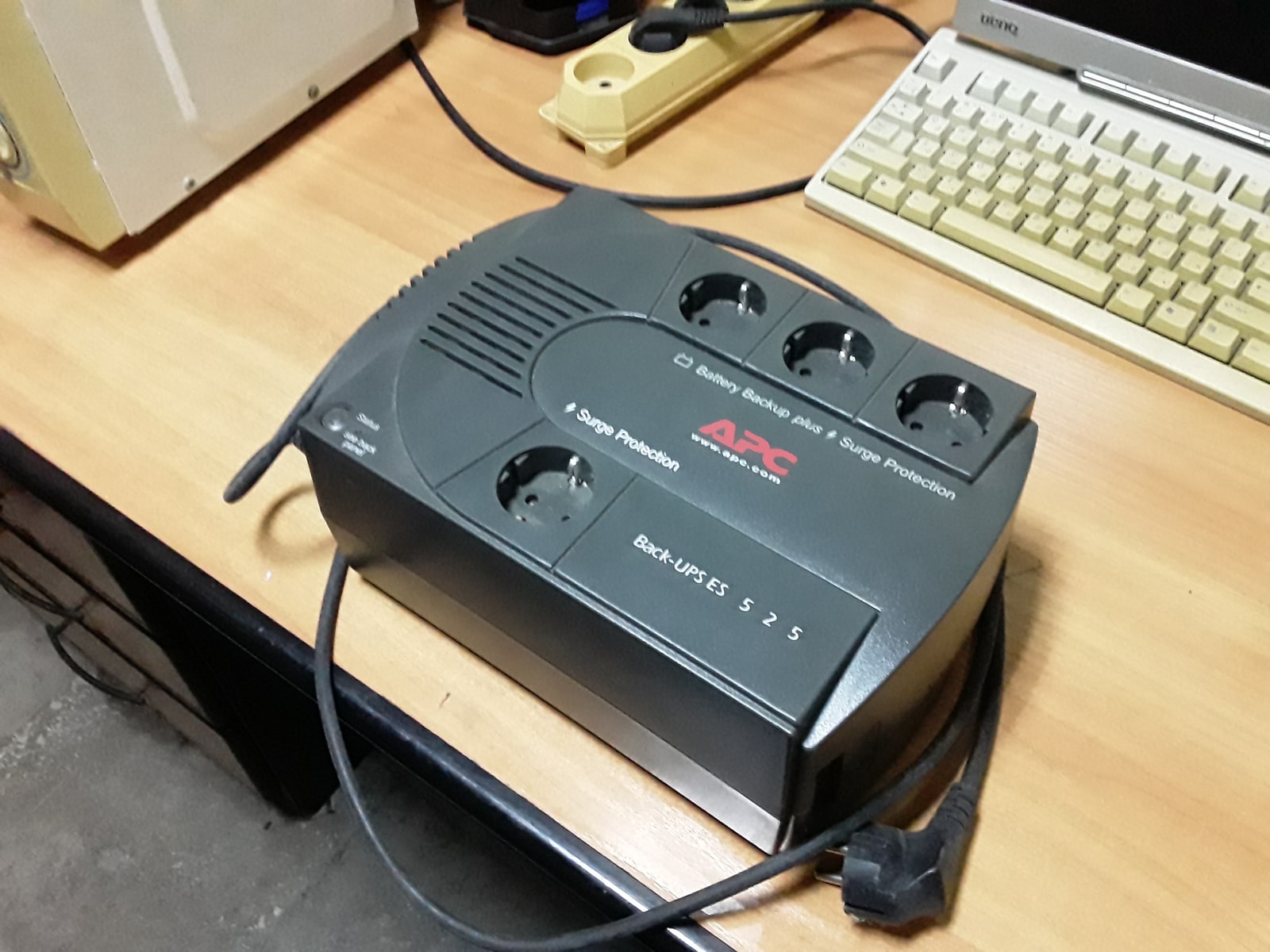
Put only essential devices on battery-backed outlets. A surge-only outlet can look identical and leave the fiber terminal unpowered when the supply fails. Consider which devices can manage on their own batteries, such as a laptop. A desktop, external monitor or storage appliance can consume power that would otherwise keep your network alive. If you also need to protect storage, give it a shutdown plan appropriate to that equipment.
| Backup | Useful when | What to check |
|---|---|---|
| AC UPS | Several local devices need to stay powered | Battery-backed outlets, transfer behavior and runtime at the actual load |
| Dedicated DC backup | One compatible box needs power | Voltage, polarity, connector and continuity when input power changes |
| Cellular hotspot or failover router | The fixed broadband route goes down | Coverage at the desk, tethering allowance and whether work apps reconnect |
Rehearse the switch while the stakes are low
Start with the manufacturer’s self-test after the battery has charged. Schneider describes a brief battery transfer for supported Back-UPS units. A pass provides evidence that the device managed that check. It gives you little information about the entire network or an hour on battery. Arrange a separate practice session when an interruption would be acceptable and follow the manufacturer’s instructions for a load test. Avoid changing the building wiring or defeating the equipment’s safety features.
Before the practice run, confirm that every necessary device is on a battery-backed outlet and write down what normally works. Pick two observations you can repeat. First, check that the laptop can reach a local device or the router. Then use the remote service that matters, such as a scheduled test call or a permitted VPN session. Temporarily isolate any automatic fallback during the fixed-line portion of the exercise so an unnoticed mobile connection does not give a false pass. Restore the normal settings afterward.
Record the time, battery reading, whether any boxes rebooted, and when the useful connection returned. Stop at the target time or your planned reserve. You can answer whether the setup meets a thirty-minute requirement without running the battery flat. Check that everything returns to the normal path afterward and that the UPS begins to recharge. Repeat when you add equipment, replace a battery or change how you work from home.
Plan for what happens if the outage lasts beyond the test. Check the manual for restart behavior after shutdown and identify which box normally takes longest to reconnect. If the fiber terminal returns after the router has already started, note whether the router recovers on its own when the link comes back. You can learn that from normal recovery or a separate restart exercise that the manuals allow. Keep the instructions and provider contact details somewhere reachable offline. A note in the cloud is hard to retrieve at the moment you need it.
Read a failure in order. If the router and laptop can still see each other but external services are unreachable, look at the modem or terminal and the provider status before blaming Wi-Fi. If websites load but the work VPN fails, find out whether it needs to reconnect or be approved on the backup path. A useful practice run identifies a failure you can act on and gives you a way to recognize it during a real outage.
Source notes: 10.
Test a second route for outages beyond the house
Keep an independent connection if losing the fixed line would stop work you must finish. A phone hotspot is often the simplest way to try it. Use the phone at the place you would actually work and test a real call, upload or VPN connection with the laptop disconnected from its normal Wi-Fi. Check the plan’s tethering rules and decide how you will keep the phone charged.
If several people need to reconnect or you cannot be there to switch paths, consider a router with automatic cellular failover. Test a loss of the internet connection while the router remains powered, then watch what happens when the primary line returns. An existing session can drop when the public network address changes. The time to reopen a call or sign in again may matter more than the router’s advertised switching time.
A second provider may improve the odds, as Ofcom’s severe-weather advice notes, while both connections can still be affected by a wider power cut or shared infrastructure. Treat a successful practice session as evidence for the specific failure you simulated. Keep a simple plan for when neither path works, such as knowing whom to contact and how to move a deadline. That plan is part of the setup even though it draws no battery power.
Sources & Methods
We reviewed telecoms regulator guidance, ISP documentation and UPS sizing and testing instructions on November 5, 2026. The 24 W example is hypothetical. The calculations and rehearsal procedure are Lumacta’s synthesis. AI assisted research and drafting. Lumacta did not perform hands-on testing.
- Ofcom: staying connected in severe weather — Independent UK regulator guidance, October 13, 2026
- Verizon: Fios PowerReserve service scope — Primary provider documentation for a voice-only backup product
- Sonic: battery and data backup — Primary provider documentation on fiber terminal and network-device power
- Fiber Optic Association: installing active FTTH equipment — Independent technical reference on provider and customer fiber equipment
- Eaton: UPS sizing guide — Primary manufacturer guidance on watts, volt-amperes and runtime
- Schneider Electric: APC runtime graphs — Primary manufacturer explanation of runtime assumptions and battery conditions
- Schneider Electric: Back-UPS no-load shutdown — Primary model-dependent support note on light-load battery shutdown
- ENERGY STAR: UPS product criteria — Independent U.S. EPA efficiency measurement criteria
- Eaton: UPS fundamentals handbook — Primary technical handbook comparing power topologies
- Schneider Electric: Back-UPS self-test — Primary model-specific battery transfer and self-test instructions
- CyberPower OR1500PFCRT2U specifications — Primary manufacturer runtime and rating figures for a U.S. model
- CyberPower OR1500PFCLCD specifications — Primary manufacturer runtime and rating figures for a second U.S. model