
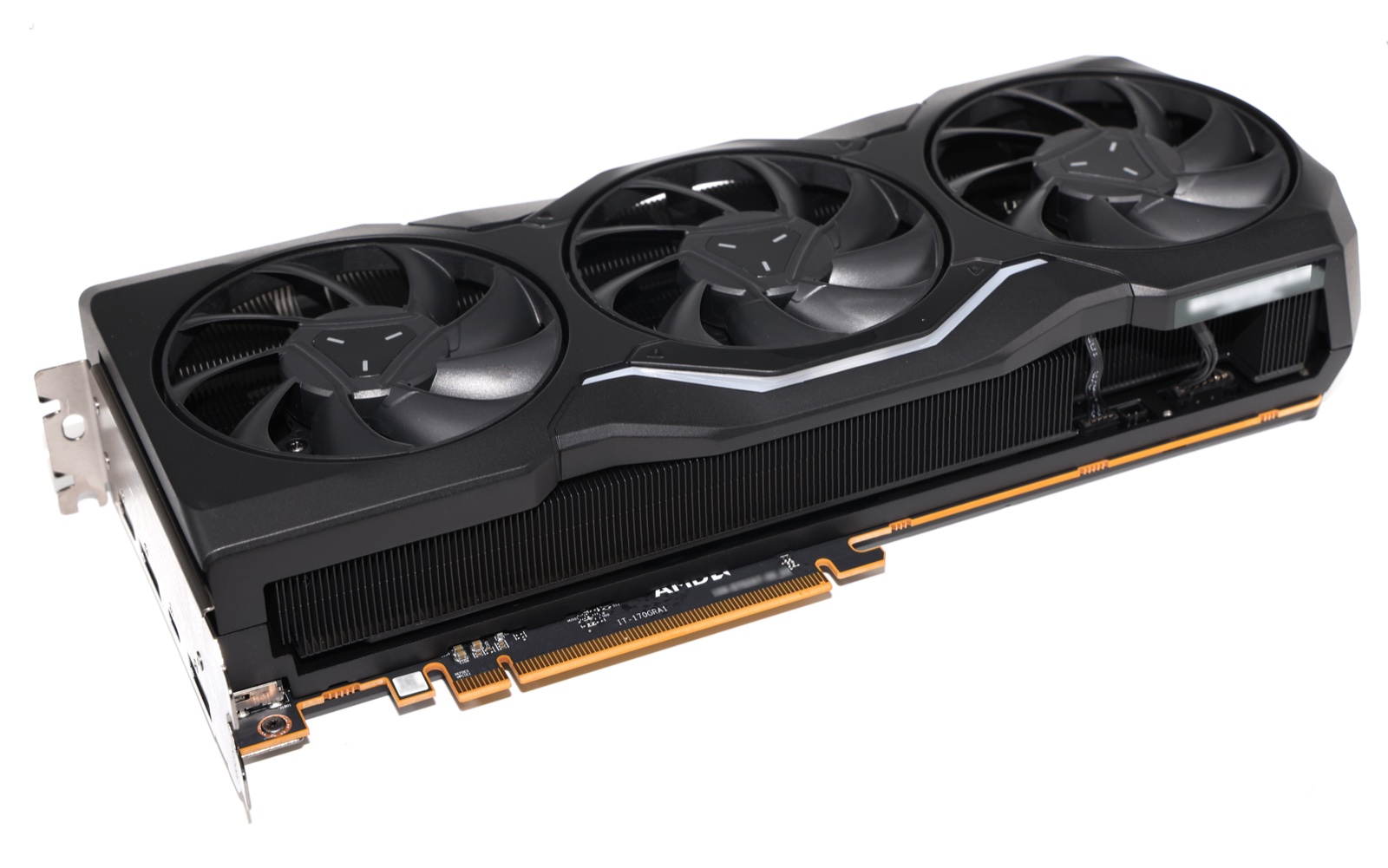
Two write patterns, one optional driver
AMD released Adrenalin Edition 26.11.1 on November 12, giving Radeon owners an official fix for a storage problem that could continue while a Windows PC sat idle. AMD lists two fixes. One covers excessive system-drive writes at idle on Radeon RX 7000-series cards and newer. The other covers writes triggered by moving or resizing application windows. AMD gives no product range for the second symptom in that entry.
That distinction matters because the list of products that can install the package is broader than the stated scope of the idle problem. AMD lists older RX 5000 and RX 6000 desktop cards as compatible as well. Their presence in the download list tells you which cards the package supports. To establish whether the idle symptom affects a specific PC, start with that machine’s observed behavior.
Before the patch, PC Gamer reported user observations involving an AMD background process and said a member of its own staff could not reproduce the behavior on their Radeon system. Wccftech independently reported the November 12 driver release and its two storage fixes. Together those reports explain why the update matters and why a single user’s reported write rate is a poor forecast for another machine.
Follow the writes from Windows to the drive
A file write has at least two places where you can observe it. A Windows process can hand data to the file cache, and Windows can flush that data to the disk later. Microsoft’s explanation of Windows tracing shows why the file activity may be attributed to the program while the eventual physical write appears under System. Adding those figures can count the same work twice.
Start by looking at the write rate for the physical system drive, then look at which processes and file paths are busy at the same time. Windows Resource Monitor can give you a first look at the activity. Performance Monitor can help when the pattern is intermittent and a longer record would be easier to compare. Make a note of background work such as a download, a sync client or a backup, since those can produce writes while the desktop looks quiet.
On an NVMe SSD that exposes its health log, the cumulative Data Units Written field provides another check. It tracks host data written to the controller. Subtract the earlier reading from the later one for the same drive. If your utility already displays gigabytes or terabytes, use the displayed units for both readings. This measures writes from the whole system during the interval. Use the Windows process and file observations to investigate what generated them.
What an SSD health percentage can tell you
The NVMe standard defines Percentage Used as a manufacturer-specific estimate of how much of the drive’s endurance has been consumed. The host-write total counts a different thing. Windows can identify bursts over seconds and the drive can show how much data arrived over a longer interval. The endurance estimate is best read as a longer-term trend.
For scale, a sustained extra 1 megabyte per second would amount to about 3.6 gigabytes an hour, or 28.8 gigabytes in eight hours. That is an arithmetic example using decimal units. Its purpose is to show why the duration of a write pattern matters as much as the peak you see on a screen. A brief burst while a browser updates tells a different story from the same rate persisting all afternoon.
When a write pattern is corrected, the immediate change to look for is a lower rate of new writes. A driver change leaves the drive’s existing endurance estimate and past write total in place. If the drive itself reports a critical warning or rising media errors, treat that as a separate storage problem and make sure important files have a current backup.
Source notes: 5.
Compare the same workload after a restart
If the problem is still occurring, record the Radeon model, the installed driver version and a short sample before updating. On an eligible desktop, use AMD’s release notes to confirm the package. AMD recommends checking the system maker’s driver for laptops and all-in-one PCs because its reference package offers limited support for system-specific features. Handheld gaming PCs use their own device-maker drivers.
After installing the approved update, restart and let the usual startup work settle. Watch the same drive for a similar period with the same apps open. If moving or resizing a window was the trigger, run that check separately. Note which file paths and processes are active so that a sync job or a Windows update does not become an accidental comparison point.
AMD still lists other known issues in the optional release, including a War Thunder driver timeout on RX 5000 hardware. If writes are normal and your PC depends on a specific driver for work or a game, check that list before switching. If the extra writes persist after the update, send AMD or the device maker the model, installed version, workload and write-rate observations. Those details give support a repeatable symptom to investigate.
Sources & Methods
We compared AMD’s release notes with independent reports and checked Microsoft’s disk activity documentation and the NVM Express standard. The verification steps are a suggested procedure for readers.
- AMD Adrenalin Edition 26.11.1 release notes — Primary driver release and compatibility
- PC Gamer’s reporting before the patch — Independent reporting and a negative reproduction attempt
- Wccftech’s November 12 patch coverage — Independent coverage of the release
- Microsoft’s explanation of cached and physical disk writes — Primary Windows engineering documentation
- NVM Express base specification, SMART / Health Information Log — Primary technical standard
- Microsoft’s performance counter guide — Primary Windows technical documentation